With Windows 11, Microsoft has updated the complete look and feel of the taskbar. But, many users complain that the centred Windows 11 “Taskbar not working” which is making them feel disappointed.
In this article, We will discuss some of the best troubleshooting steps to fix the Windows 11 taskbar not working problem.

How to fix the taskbar not working issue?
Restart Taskbar Services
To do this,
- Firstly, Press Ctrl+Shift+Esc keys on your keyboard to launch the task manager menu.
- After that, click on more details and then select the processes tab.
- Under processes tab, scroll down and select the Windows Explorer option and hit the restart button.

Repair System Files
To repair system files:
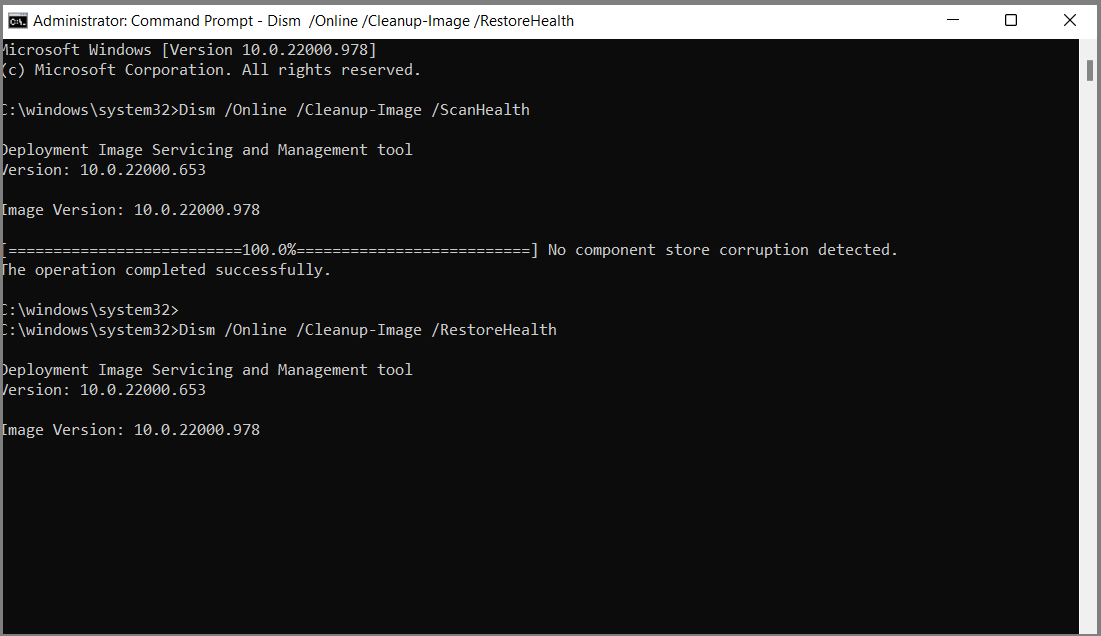
- Firstly, open the Command Prompt and Run as Administrator.
- After that, once the CMD window is launched, enter the following commands.
Dism /Online /Cleanup-Image /ScanHealth
Dism /Online /Cleanup-Image /RestoreHealth
Run SFC Scan to fix Taskbar not working
To run the SFC scan:
- Firstly, open the Command Prompt and select the option of Run as administrator.
- Next, type the command as sfc /scan now in the terminal window and press Enter and then rerun the application.

Run Windows Security Check to fix Taskbar not working
- Firstly, use the Windows + I keyboard shortcut to launch the settings menu on Windows 11.
- After that, go to the Privacy and Security option in the left pane
- Then, select the Windows Security Option and choose the Virus and Threat tab.
- Finally, click on the quick scan option.

Disable Auto Hide Taskbar Feature
- Firstly, Use the Windows + I keyboard shortcut to launch the Settings menu on Windows 11.
- After that, select the Personalization’s option from the left pane.
- Next, click on the taskbar and choose the Taskbar behaviour option.
- Finally, once completed uncheck the Automatically hide taskbar option.

Change Taskbar Alignment to Center
To do this,
- Firstly, open the Taskbar settings,
- After that, go to the Taskbar Behaviors section and
- Finally, select ‘Center’ in the dropdown next to Taskbar alignment.

Finally, by following the above methods if you are still not able to resolve this issue, we suggest you to chat with our experts team. I am sure they will guide you and provide a perfect solution.
Windows 11 Taskbar Not Working – FAQ
Why is my Windows 11 taskbar not working?
The taskbar may stop working due to system file corruption, Windows Explorer issues, pending updates, or software conflicts.
How do I fix taskbar not responding in Windows 11?
You can fix it by restarting Windows Explorer, running SFC and DISM scans, updating Windows, or restarting taskbar-related services.
Can corrupted system files cause taskbar issues?
Yes, corrupted or missing system files can prevent the taskbar from functioning properly.
Why is my taskbar frozen or unclickable?
This can happen due to a glitch in Windows Explorer, background app conflicts, or temporary system bugs.
Is Windows 11 taskbar issue common?
Yes, many users have reported taskbar issues after updates, but it can be fixed using basic troubleshooting steps.
Simultaneously, you can also visit our website for more details and information.

Tags: error code, Windows, Windows 11, Windows 11 support, windows 11 update