Many users have reported the issue of Microsoft Word not opening on Windows 11. It generally occurs when the Windows Firewall or Defender is blocking access. Updating Windows Operating System will fix errors preventing Word from working on your PC. This article will provide you the steps to resolve the issue of Microsoft Word Is Not Opening in Windows 11

Causes of Microsoft Word not opening
The major reason for the occurrence of this error is corrupt or missing files. The corrupt files affect the Word client on your system, stopping it from opening. Some of the other causes include,
- Outdated Windows
- Third-party applications
- Outdated Word application
What to do if Microsoft Word does not open on Windows 11?
- Check whether there is ample memory space to run Word on your PC
- Disable third-party antivirus software running on your device
- Close all the unwanted applications
Solutions to fix the Microsoft Word Is Not Opening in Windows 11
Reboot your PC in Safe Mode
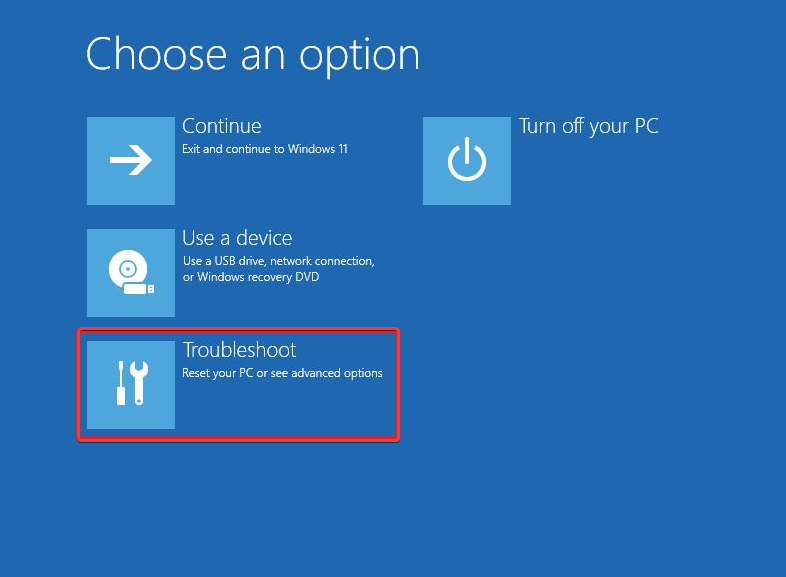
- Firstly, open the Advanced Recovery Options page
- After that, click on Troubleshoot, then select the Advanced options
- Next, click on Startup Settings and select the Restart option
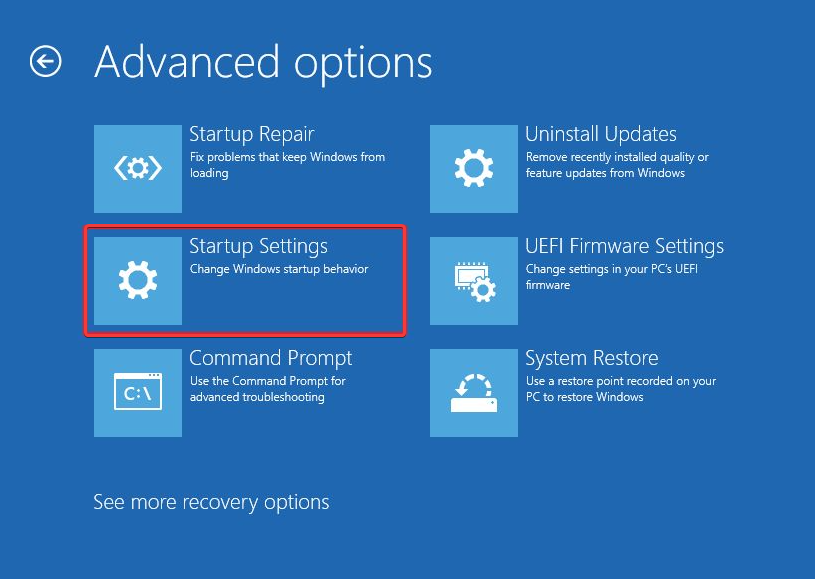
- Finally, enable the Safe Mode
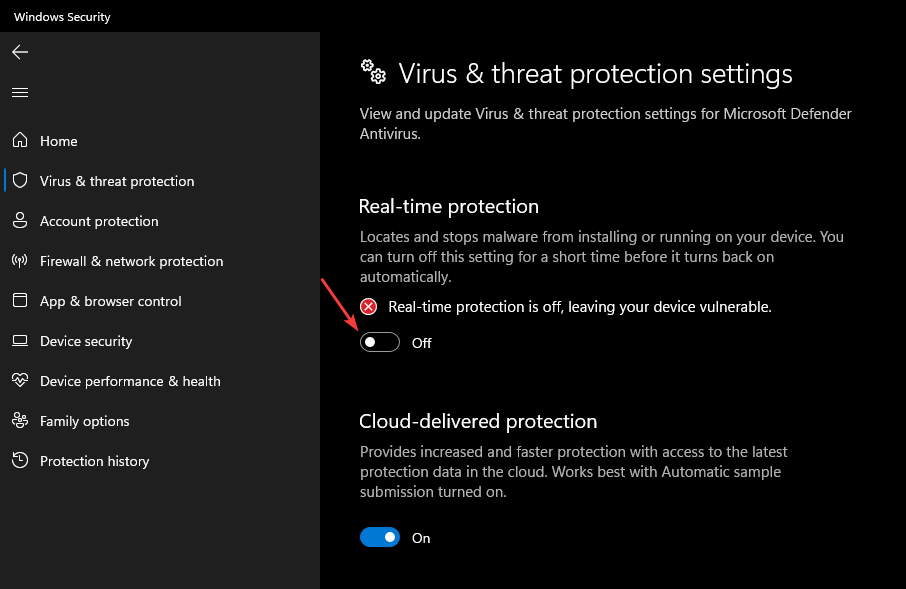
Temporarily disable Windows Defender Firewall
- Firstly, type Windows Security in the search box, and press Enter
- After that, select the Virus & threat protection option, then click Manage settings
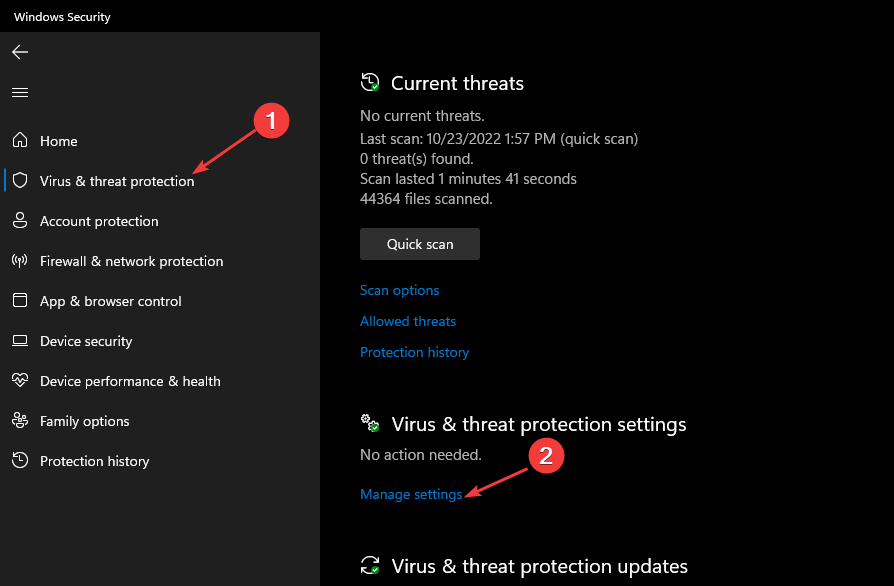
- Finally, toggle off the Real-time protection option to disable Windows Defender Antivirus
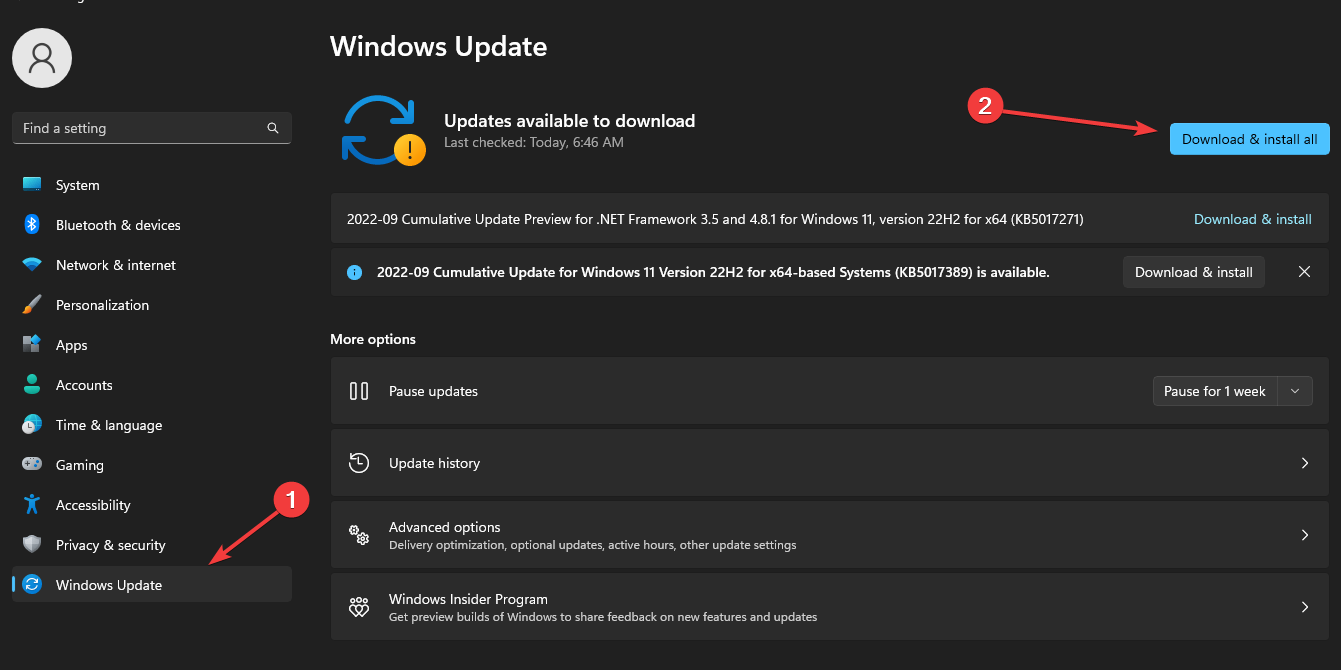
Updating Windows to fix Microsoft Word not opening
- Firstly, open the Windows Settings app
- After that, click on Windows Update option from the list and select the Check for updates
Repair or reinstall Microsoft Office
- Firstly, open the Control panel, click on Programs, and select Programs and Features
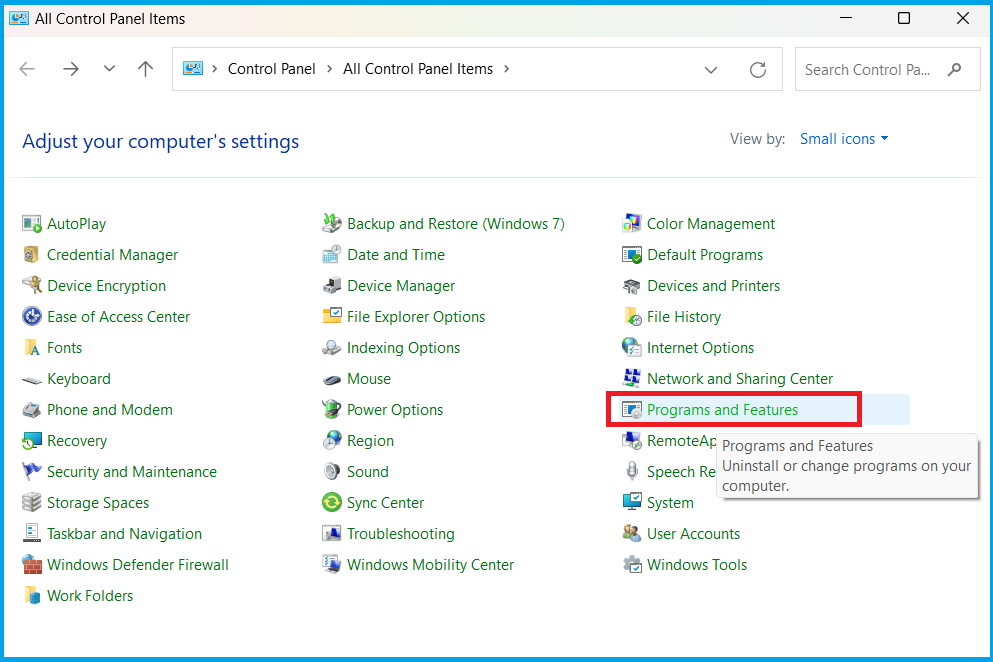
- After that, find Microsoft Office, click the three dots and select Repair options, then click on OK
- Now, click on Repair and Repeat steps 1-2, click three dots find Microsoft Office, select Uninstall, and then OK
- Finally, restart your PC and install the latest Microsoft Office version available for Windows
Repair corrupt Word files
- Firstly, click on the Start button, type Microsoft Word to open the application
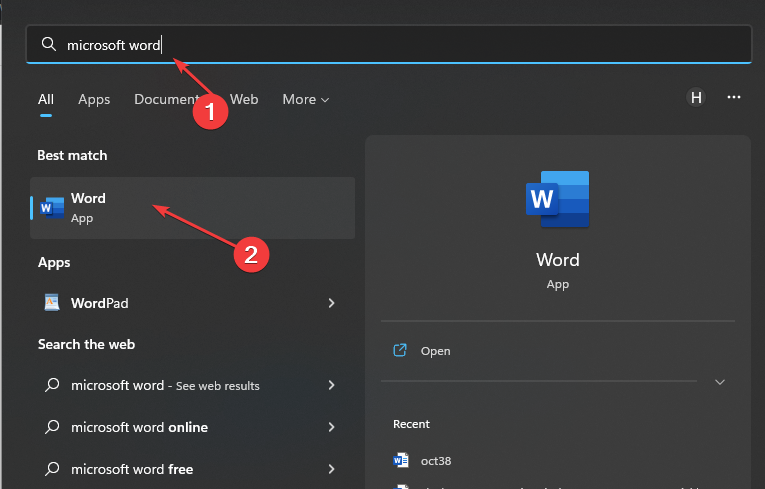
- go to the File option, select Open and then click on Browse

- Navigate through and check for corrupted Word files on the PC
- Click on the file, tap the arrow pointing down beside the Open button, and select the Open and Repair option
At last, follow the above-explained methods and restart your system services will ideally resume your updates to work. If you still need help fixing this Microsoft Word Is Not Opening in Windows 11, we suggest you chat with our experts. I am sure they will help you resolve this issue altogether. You can also visit our website for more details and information.