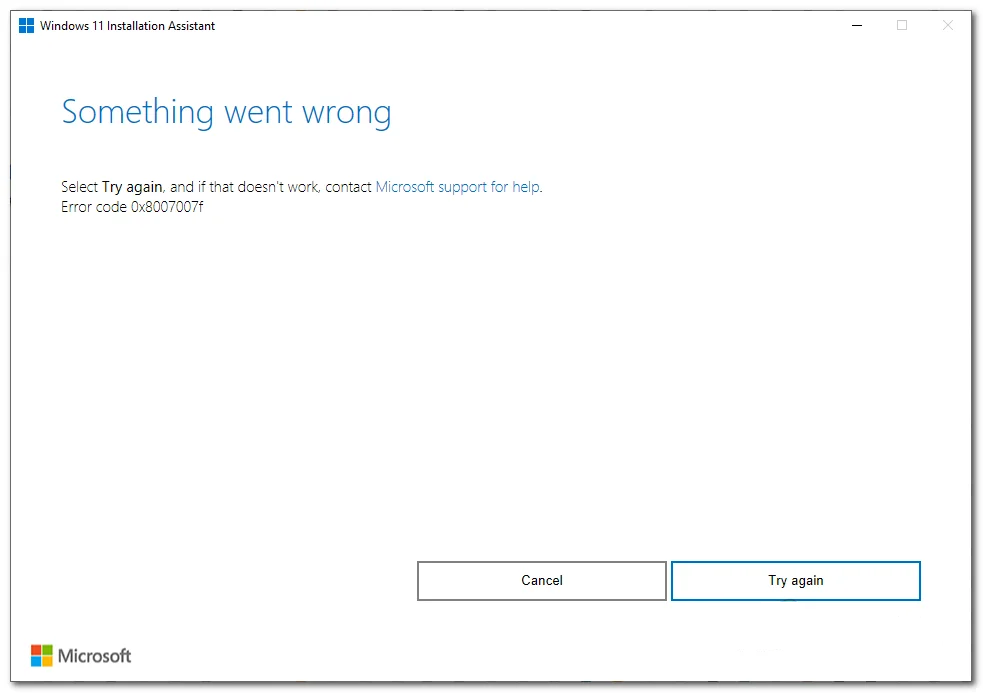
Error code 0x8007007f will pop up when the Windows 11 Installation Assistant tool is used to manually upgrade to Windows 11. At this stage of the upgrade, the Windows 11 Installation Assistant app will show a message, stating “Something went wrong. Select Try again, and if that doesn’t work, contact Microsoft support for help. Error code 0x8007007f”. In this post, we will show the different causes of this error code, and also the methods used to resolve this error code 0x8007007f. In some cases, this issue may also occur when Windows Update is not working properly on the system.
Possible causes of the Error code 0x8007007f
Error code 0x8007007f appears in the Windows 11 Installation Assistant.
This error usually occurs due to insufficient administrator permission, corrupted system files, or outdated drivers.
Official Microsoft Explanation
According to Microsoft documentation, Windows upgrade errors can occur due to missing permissions,
incompatible drivers, or damaged system components during installation.
You can read more details on the official support page:
Microsoft Windows Support.
Many users also notice the installation stops midway, similar to cases where
Windows update gets stuck during installation.
Some users also experience situations where Windows Update gets stuck at 0% during installation.
Sometimes corrupted update packages may also trigger related issues like
Windows Update error 0x8007000d. Similar installation failures may also appear as Windows Update Error 0x80070002 when update files are missing or damaged.
Methods to fix Windows 11 Update Error Code 0x8007007f?
If this error code still persists after you selected Try again, then follow these fixes to resolve this error.
Run Windows 11 Installation Assistant as administrator
- Firstly, right-click on the file Windows11InstallationAssistant.exe and Run as administrator
- After that, select Yes in the UAC prompt to allow Windows 11 Installation Assistant to run with Administrator privilege
- Finally, follow the on-screen instructions to start installing Windows 11
Disable third-party antivirus
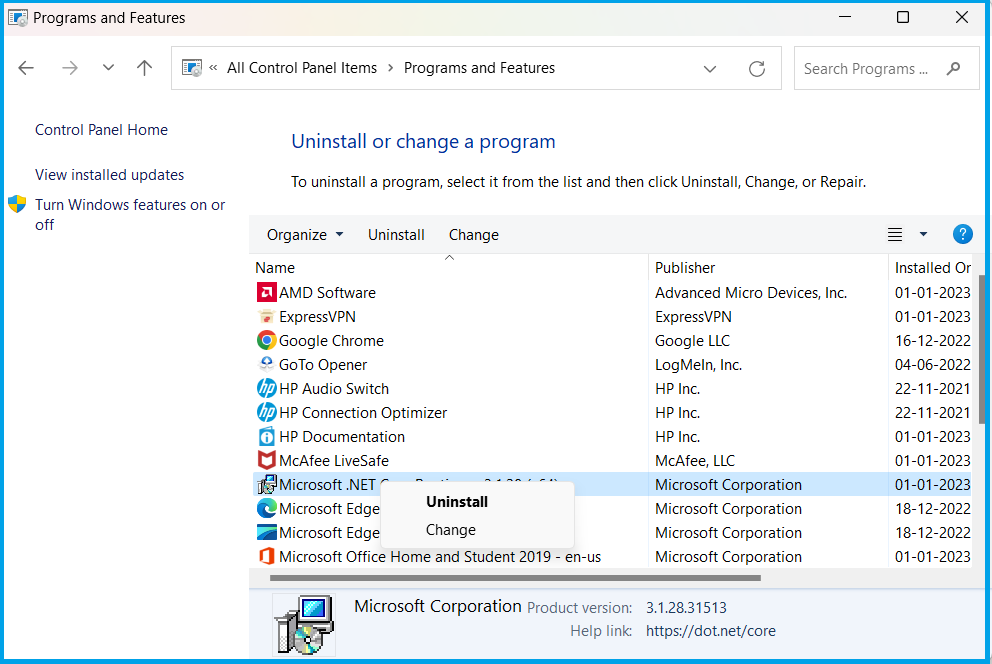
To uninstall your antivirus software, follow the below steps
- Firstly, close the antivirus software if it’s running on your PC
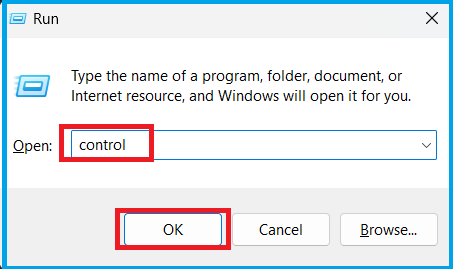
- Then, open the Run dialog, then type control, and press Enter
- Now, select Uninstall a program in the control panel window and click Programs & Features section
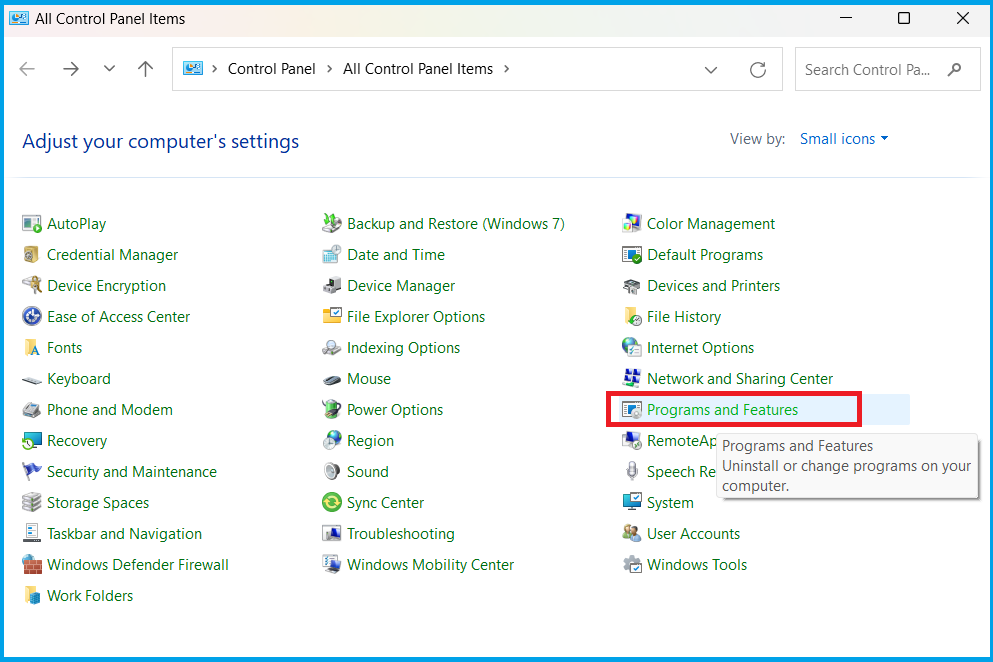
- Finally, right-click on it and click Uninstall/Change
If the upgrade still fails, try to reset Windows Update components to rebuild update services before installing again.
Perform SFC scan
To repair corrupted files, you should first run an SFC scan in Windows 11.
Missing or damaged system files can also cause Windows Update Error 0x800f081f during updates.
- Firstly, navigate the command prompt and Run as Administrator
- After that, enter the below command as
sfc /scannow

- Check if the Windows search issues still exist even after the SFC command is executed
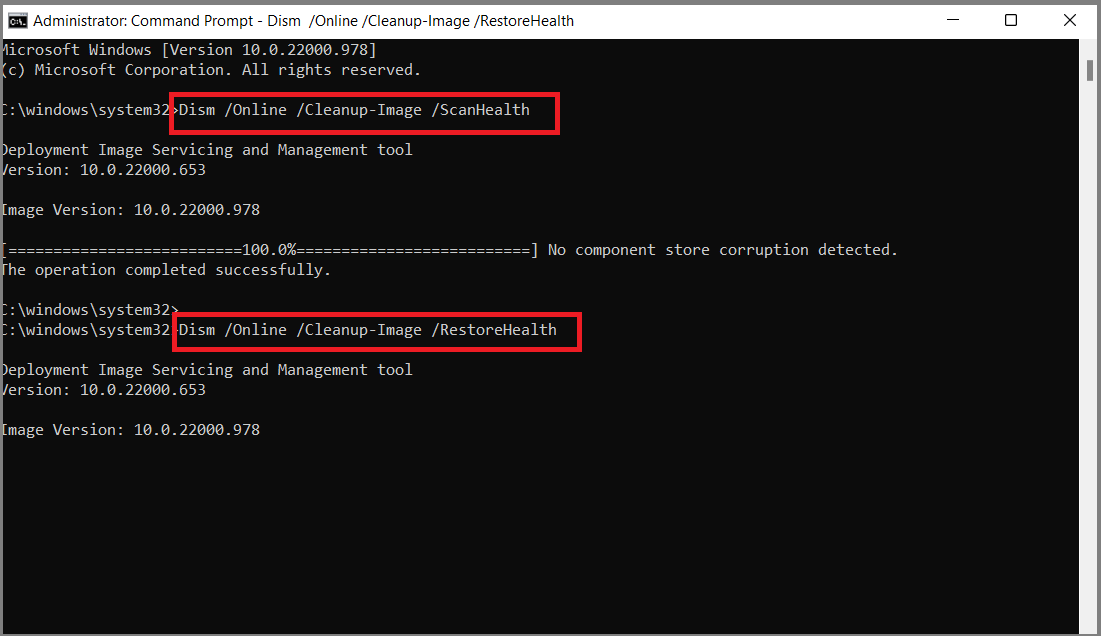
If this doesn’t help, you may need to repair the Windows image using the DISM tool. To do so, follow the below steps:
- Go to the command prompt window and Run as Administrator
- After that, type the below commands one after the other and press enter after each command
DISM /Online /Cleanup-Image /CheckHealth
DISM /Online /Cleanup-Image /ScanHealth
DISM /Online /Cleanup-Image /RestoreHealth
Update your graphics driver
If your graphics card driver is not updated for a long time, do it immediately. To update the graphics driver on your PC, visit the graphics card manufacturer’s website. Once the graphics driver is downloaded on your computer, double-click on the driver file to install the graphics driver update.
After applying the above methods, restart your computer and check if the update works properly. If Windows Update Error 0x8007007f continues to appear, follow this complete guide to fix corrupted system files in Windows 11 before retrying the upgrade.
If the problem still continues, you can follow our complete Windows Update troubleshooting guide for additional solutions.
Frequently Asked Questions
Q. What causes Windows Update Error 0x8007007f?
This error usually occurs due to missing administrator permissions, outdated drivers, or corrupted system files during the Windows 11 upgrade process.
Q. Can Windows Update Error 0x8007007f be fixed?
Yes. Running the installation assistant as administrator, updating drivers, repairing system files using SFC and DISM, or resetting Windows Update components can often fix this error.
Q. Does outdated drivers cause error 0x8007007f?
Yes. Outdated graphics drivers are one of the common causes of this Windows 11 installation error.
Tags: Corrupted System Files, Installation Assistant Error, Windows 11 Error Codes, Windows 11 Update Error Code 0x8007007f, Windows 11 Update Errors, Windows Installation Errors, Windows Update Failed, Windows Upgrade Errors