Windows Update plays a crucial role in keeping your system secure, stable, and up to date with the latest features. Microsoft regularly releases updates that include security patches, bug fixes, and performance improvements. You can also check the official Microsoft Windows Update support page for additional details about update processes. However, there are times when Windows Update stops working, preventing users from installing important updates. In some cases, Windows may also display specific errors such as Windows Update Error 0x80070002 when update files are missing or corrupted.
When this issue occurs, the update process may fail to start, remain stuck while downloading, In some cases the installation may freeze where Windows Update gets stuck at 0% during installation. or display error messages during installation. In some situations, Windows may repeatedly check for updates but never complete the installation.
In this guide, we will explain the common reasons why Windows Update is not working and provide practical methods you can follow to fix the issue on Windows 10 and Windows 11.
Why is Windows Update Not Working?
There are several reasons why Windows Update may fail to work properly. Some of the most common causes include:
1. Corrupted Windows Update Files
Sometimes update files stored on your system may become corrupted or incomplete. When Windows attempts to install these files, the update process may fail.
2. Windows Update Service Issues
Windows Update relies on background services such as Windows Update Service (wuauserv) and Background Intelligent Transfer Service (BITS). In some situations corrupted update packages may trigger Windows Update Error 0x8007000d during installation. If these services stop functioning properly, updates may not download or install.
3. Damaged System Files
If important system files become corrupted, Windows may not be able to complete the update process successfully. Missing system components may also lead to Windows Update Error 0x800f081f during feature installation.
4. Internet Connectivity Problems
A slow or unstable internet connection can interrupt the update download process, causing updates to fail.
5. Insufficient Disk Space
If your system does not have enough storage space available, Windows Update may not be able to download or install updates.
How to Fix Windows Update Not Working
Below are several effective methods you can try to resolve the issue.
Method 1: Run the Windows Update Troubleshooter
Windows includes a built-in troubleshooter that can automatically detect and fix common update-related problems.
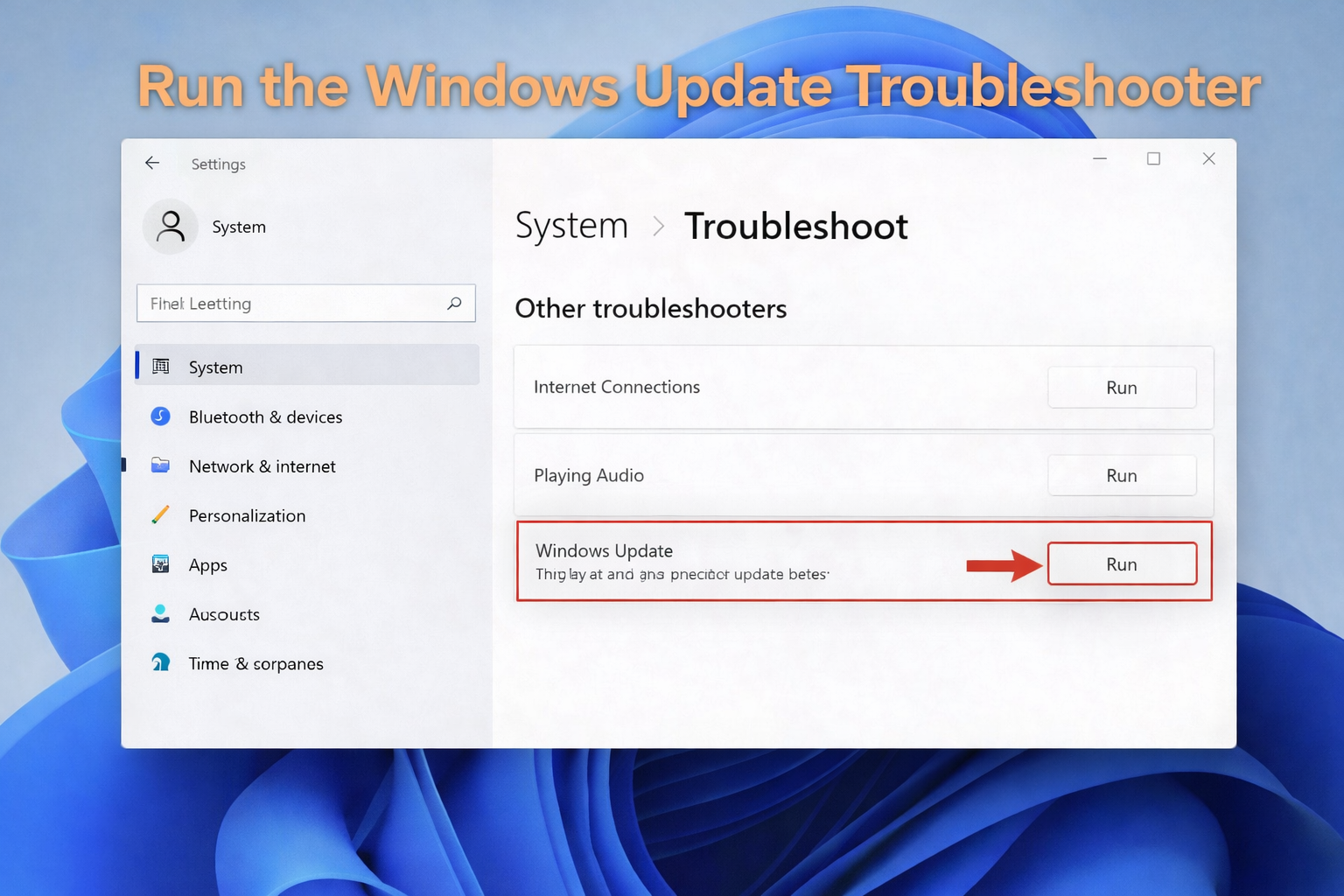
Steps:
-
Press Windows + I to open Settings.
-
Go to System → Troubleshoot → Other troubleshooters.
-
Locate Windows Update and click Run.
-
Follow the on-screen instructions.
The troubleshooter will scan your system and attempt to repair any detected problems.
Method 2: Check Your Internet Connection
A stable internet connection is required to download updates successfully.
You can try the following steps:
-
Restart your router or modem
-
Switch to a different network if possible
-
Disable VPN or proxy temporarily
After ensuring your internet connection is stable, try checking for updates again.
Method 3: Reset Windows Update Components
If Windows Update continues to malfunction, resetting the update components can often fix the problem. This process clears the update cache and restarts the update services.
You can follow this complete guide to reset Windows Update components for detailed instructions.
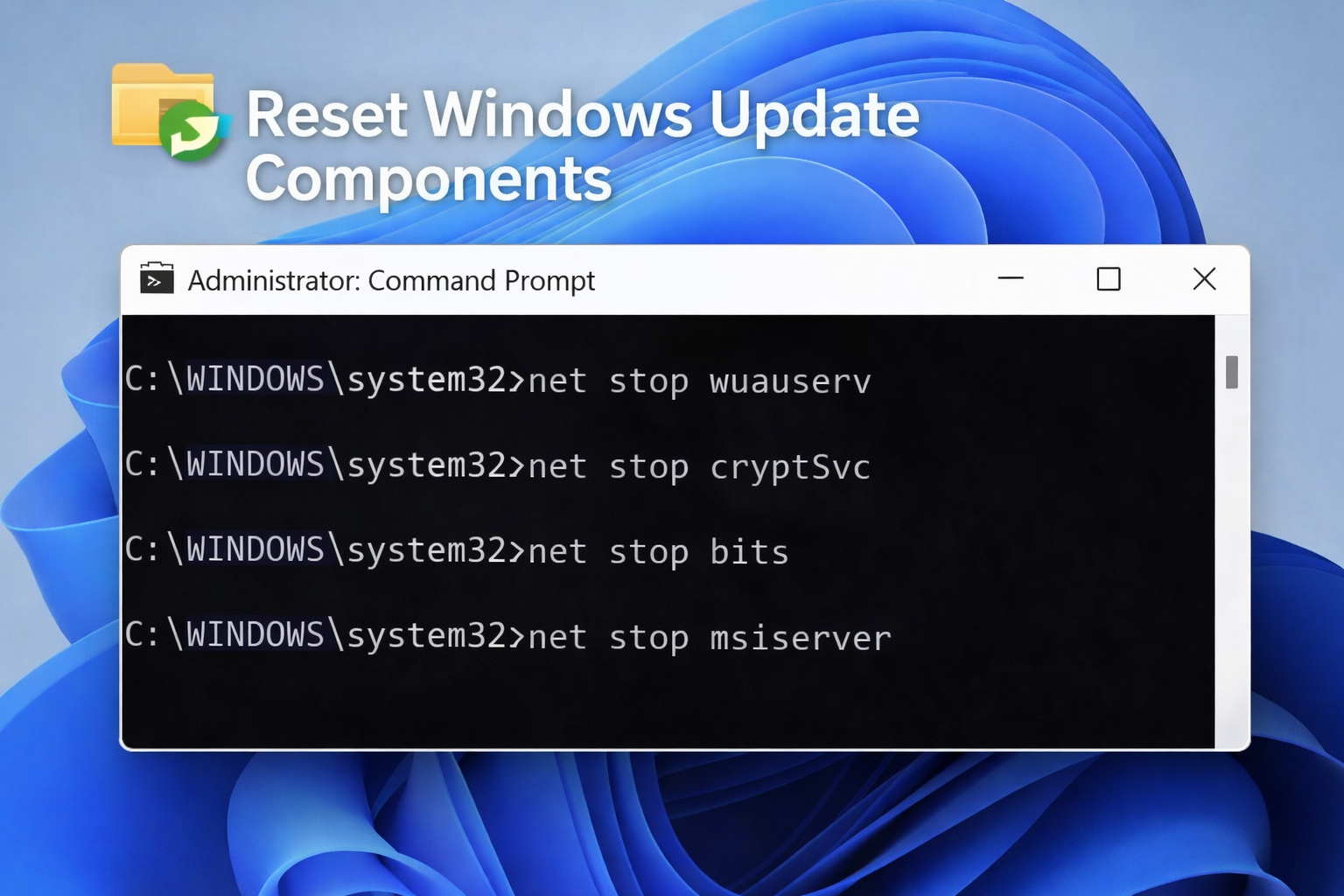
Basic steps include stopping update services, clearing the update cache, and restarting the services again.
Method 4: Run DISM and SFC Scan
If corrupted system files are preventing Windows Update from working, you can repair them using built-in tools such as DISM and System File Checker (SFC).
For a detailed walkthrough, you can follow this guide on how to run the DISM command in Windows 10 and 11.
Open Command Prompt as Administrator and run the following commands:
sfc /scannow
Method 5: Fix Windows Update Stuck Issues
Sometimes Windows Update may stop working because the update process becomes stuck during downloading or installation.
If your update remains stuck for a long time, you can follow this guide on how to fix Windows Update stuck issues for additional troubleshooting steps.
Method 6: Free Up Disk Space
If your system storage is nearly full, Windows Update may fail to download new updates.
You can free up disk space by:
-
Deleting temporary files
-
Uninstalling unused programs
-
Using Disk Cleanup tool
After freeing up space, check for updates again.
Tips to Prevent Windows Update Problems
To reduce the chances of Windows Update failing in the future, consider the following tips:
-
Keep your system date and time settings correct
-
Maintain sufficient free disk space
-
Avoid interrupting updates while they are installing
-
Ensure your internet connection is stable
-
Regularly scan your system for malware
Following these practices can help ensure a smooth update process.
Frequently Asked Questions
Q. Why is Windows Update not working on my computer?
Windows Update may stop working due to corrupted update files, damaged system components, service issues, or internet connectivity problems.
Q. Can resetting Windows Update components fix the problem?
Yes. Resetting Windows Update components clears corrupted update cache files and restarts update services, which often resolves update failures.
Q. Does Windows Update require internet connection?
Yes. Windows Update needs a stable internet connection to download update packages from Microsoft servers.
Q. How do I fix Windows Update stuck while downloading?
If Windows Update becomes stuck during downloading or installation, you can follow troubleshooting steps such as restarting update services, clearing the update cache, or running the Windows Update troubleshooter.
Conclusion
Windows Update not working is a common issue that can occur due to corrupted update files, damaged system components, or service-related problems. Fortunately, most update issues can be resolved by running the Windows Update troubleshooter, resetting update components, or repairing system files.
Some users upgrading their system may also encounter Windows Update Error 0x8007007f during installation. If the issue still persists after trying these solutions, you can follow our complete Windows Update troubleshooting guide for more advanced solutions to resolve update-related problems.
Tags: DISM Command Windows, Fix Windows Update, Fix Windows Update Error, Microsoft Update Issues, Reset Windows Update Components, Windows 10 Update Issues, Windows 11 Update Fix, Windows Update Not Working, Windows Update Problems, Windows Update Repair, Windows Update Stuck, Windows Update Troubleshooting