Windows updates are essential for keeping your system secure and running smoothly. However, sometimes updates fail to install or stop midway with error messages like 0x80070002. In some cases, the issue occurs because Windows Update is not working properly on the system. In some situations, the update process may even freeze completely. If that happens, you can follow this guide on how to fix Windows Update stuck issues before trying other troubleshooting steps.
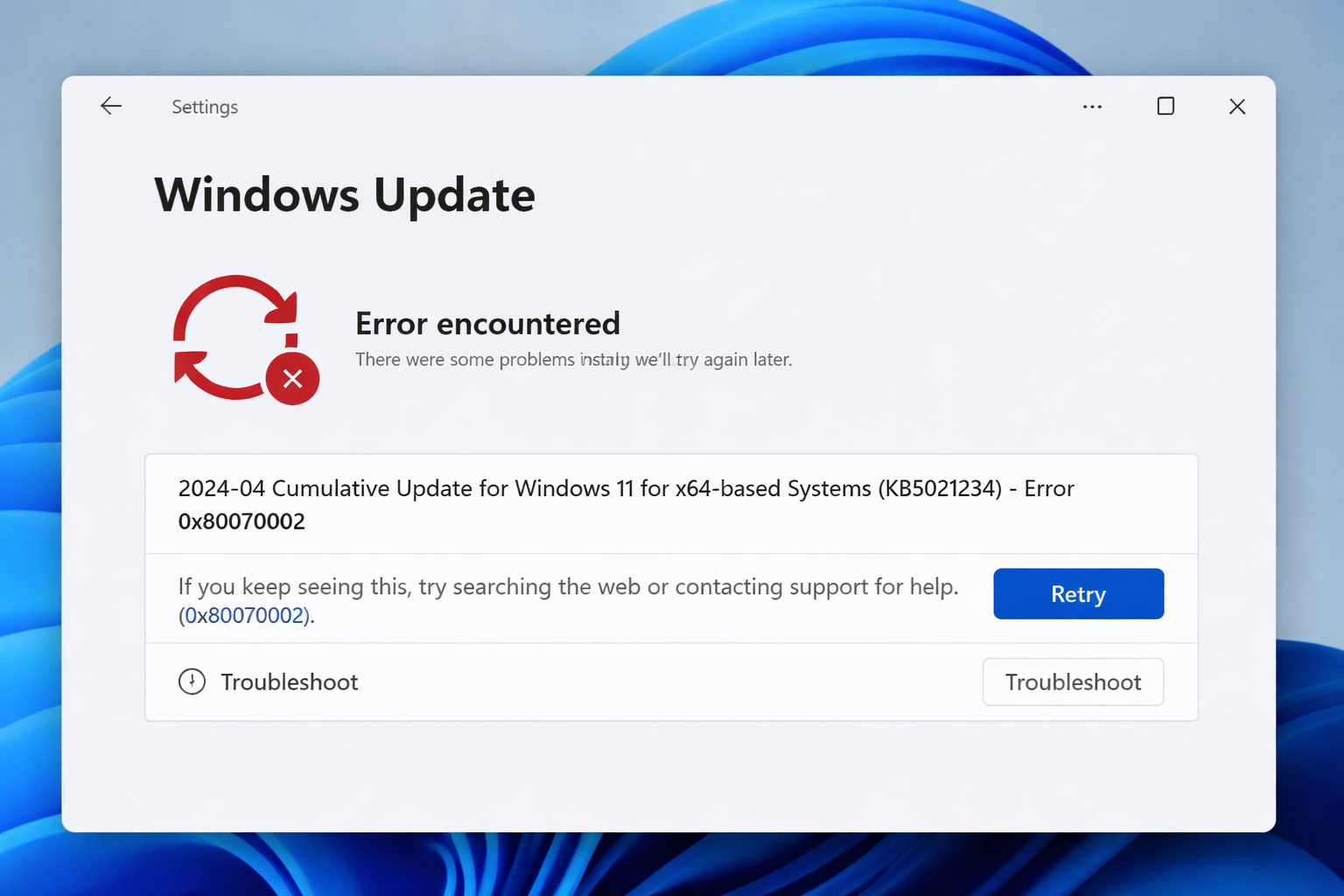
This error usually appears when Windows fails to download or install an update properly. When it occurs, the update process stops and the system may display a message indicating that the installation failed.
In this guide, we will explain what Windows Update Error 0x80070002 means, why it occurs, and the practical solutions you can use to fix it.
What is Windows Update Error 0x80070002?
Windows Update Error 0x80070002 generally indicates that some files required for the update process are missing or corrupted. Because of this, Windows cannot properly verify or install the update files.
In simple terms, the system tries to install an update but cannot find all the required files needed to complete the process.
This issue can occur in multiple versions of Windows, including Windows 10 and Windows 11.
Common Causes of Error Code 0x80070002
Several factors can trigger this error during the Windows update process. Below are some of the most common reasons:
1. Corrupted or Missing Update Files
Sometimes update files are downloaded incorrectly or become corrupted during the installation process. When Windows tries to use those files, the installation fails.
2. Incorrect Date and Time Settings
If your system date and time are not set correctly, Windows may fail to validate update files due to security verification issues.
3. Corrupted System Files
Important system files that control Windows updates may become damaged due to improper shutdowns, malware, or software conflicts. Missing or damaged system components can also trigger Windows Update Error 0x800f081f during feature installation.
4. Windows Update Service Problems
Windows Update relies on background services such as wuauserv and BITS. In some situations, corrupted update packages may also lead to Windows Update Error 0x8007000d. If these services stop working correctly, the update process may fail.
5. Damaged Windows Update Cache
The SoftwareDistribution folder stores temporary update files. If these files become corrupted, updates may fail to install.
How to Fix Windows Update Error 0x80070002
Below are several methods you can try to resolve this issue.
Method 1: Run the Windows Update Troubleshooter
Windows includes a built-in troubleshooter that automatically detects and fixes common update problems.
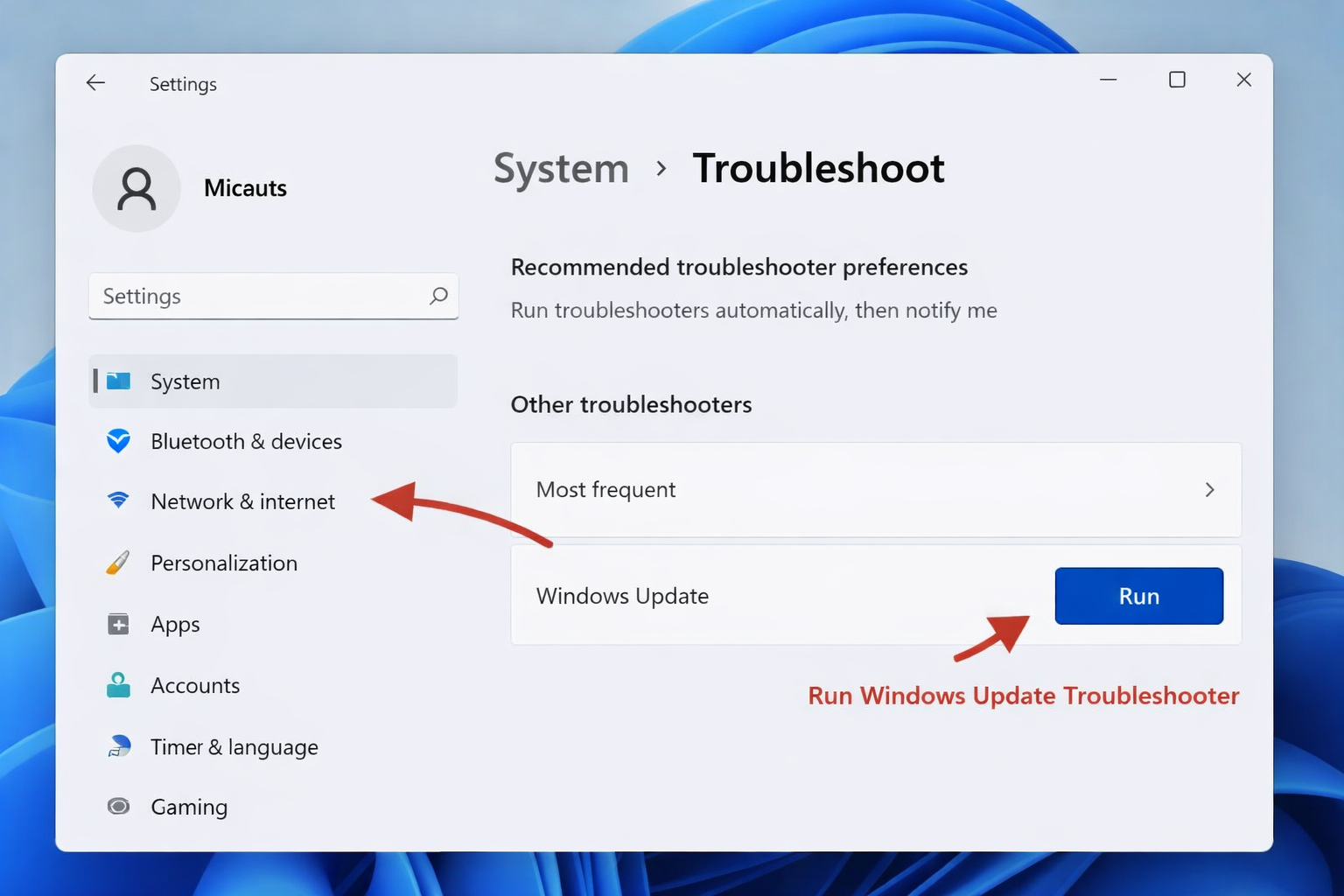
Steps:
1. Press Windows + I to open Settings.
2. Go to System → Troubleshoot → Other Troubleshooters.
3. Find Windows Update and click Run.
4. Follow the instructions shown on the screen.
After the process finishes, restart your computer and check for updates again.
Method 2: Check and Correct Date and Time Settings
Incorrect system time can prevent Windows from verifying update packages.
Steps:
1. Open Settings.
2. Go to Time & Language → Date & Time.
3. Enable Set time automatically and Set time zone automatically.
4. Click Sync now.
Once done, try installing the update again.
Method 3: Reset Windows Update Components
Resetting Windows Update components forces Windows to download update files again. If you want a detailed explanation of the process, you can follow this complete guide to reset Windows Update components.
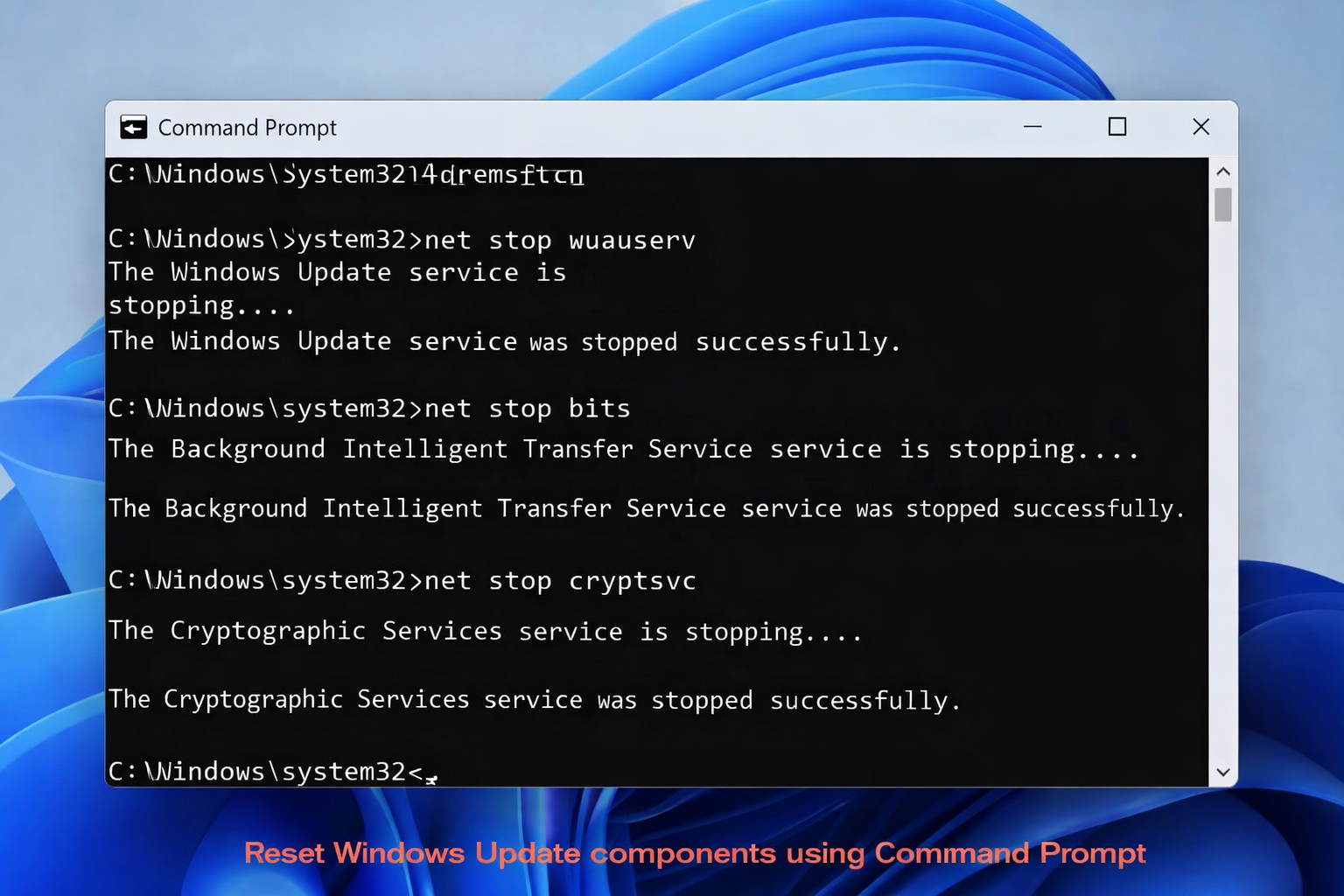
Steps:
1. Open Command Prompt as Administrator.
2. Enter the following commands one by one:
net stop wuauserv
net stop cryptSvc
net stop bits
net stop msiserver
3. Rename the update cache folders:
ren C:\Windows\SoftwareDistribution SoftwareDistribution.old
ren C:\Windows\System32\catroot2 catroot2.old
4. Restart the services:
net start wuauserv
net start cryptSvc
net start bits
net start msiserver
This will rebuild the update components and may resolve the issue.
Method 4: Run SFC and DISM Scan
If the issue is caused by corrupted system files, Windows provides built-in repair tools such as SFC and DISM. You can also follow this detailed guide on how to run the DISM command in Windows 10 and 11 for a complete step-by-step explanation.
Open Command Prompt (Admin) and run the following commands:
DISM /Online /Cleanup-Image /RestoreHealth
sfc /scannow
These tools scan the system and automatically repair corrupted Windows files.
Method 5: Install Updates Manually
If automatic updates fail repeatedly, you can manually install the update.
Steps:
1. Go to Settings → Windows Update → Update History.
2. Note the KB number of the failed update.
3. Visit the Microsoft Update Catalog website.
4. Search for the KB number and download the update manually.
This method bypasses the automatic update process.
Tips to Prevent Windows Update Errors
To reduce the chances of encountering update errors in the future:
- Keep your system time and date accurate
- Ensure a stable internet connection during updates
- Maintain sufficient disk space
- Avoid interrupting updates while they are installing
- Regularly scan your system for malware
Following these practices can help keep the Windows update process running smoothly.
Frequently Asked Questions
Q. What causes Windows Update Error 0x80070002?
Windows Update Error 0x80070002 usually occurs when Windows cannot locate the required update files. This may happen due to corrupted update files, incorrect system settings, or damaged Windows Update components.
Q. Can Windows Update Error 0x80070002 be fixed?
Yes. In most cases, the issue can be resolved by running the Windows Update troubleshooter, resetting Windows Update components, or repairing system files using SFC and DISM tools.
Q. Is Windows Update Error 0x80070002 serious?
This error is not usually serious, but it prevents updates from installing properly. Since updates contain security patches and system improvements, it is recommended to fix the issue as soon as possible.
Q. Does resetting Windows Update components fix error 0x80070002?
Yes. Resetting Windows Update components clears corrupted update cache files and restarts the update services, which often resolves this error.
Conclusion
Windows Update Error 0x80070002 is a common issue that usually occurs when Windows cannot find or properly verify the files needed to install an update. This can happen due to corrupted update files, incorrect system settings, or damaged system components.
In most cases, the issue can be resolved by running the Windows Update troubleshooter, resetting update components, or repairing system files using SFC and DISM.
Some users upgrading their system may also encounter Windows Update Error 0x8007007f during installation. If the problem continues even after trying these solutions, you can follow our complete Windows Update troubleshooting guide for more advanced methods to resolve update-related issues.
Tags: Fix Error Code 0x80070002, Fix Windows Update Errors, Microsoft Update Error Codes, Windows 10 Update Error, Windows 11 Update Error, Windows System Errors, Windows Update Error 0x80070002, Windows Update Failed, Windows Update Fix Guide, Windows Update Not Installing, Windows Update Problems, Windows Update Troubleshooting